Thursday, March 12, 2015
Deprecating Script Gallery in the old version of Google Sheets
Starting today, we are deprecating the option for developers to publish to the script gallery. No new gallery submissions will be accepted or approved, but scripts already present in the gallery will remain accessible (via the old version of Sheets).
If you rely on distributing or consuming your script from the script gallery, then please convert your script into an add-on and follow the add-on publication instructions.

Code updates required for Apps Script advanced services
The APIs for three of Apps Scripts advanced services — Analytics, BigQuery, and Prediction — will undergo breaking changes on Monday, November 18. If you dont update your code to the new syntax before then, youll receive error messages such as Required parameter is missing.
Advanced services allow you to easily connect to certain public Google APIs from Apps Script. Were working to expand and improve our advanced services, and as a side effect some methods and parameters that were incorrectly listed as optional are now required.
On November 18, these services will switch to use the new method signatures shown in the tables below. To learn how new arguments should be structured, refer to the documentation for the underlying API. For example, the documentation for the BigQuery services Jobs.query()method shows the valid properties for the resource object in the "Request body" section of the page.
| Old | New |
|---|---|
Analytics.Management.Uploads | |
|
|
BigQuery.Datasets | |
|
|
|
|
BigQuery.Jobs | |
|
|
|
|
BigQuery.Tabledata | |
|
|
BigQuery.Tables | |
|
|
|
|
Prediction.Hostedmodels | |
|
|
Prediction.Trainedmodels | |
|
|
|
|
|
|
If you want to prepare your code ahead of time, you can add a try/catch around your existing code that retries with the new method signature if the old one fails. For example, the following sample applies this approach to the BigQuery services Jobs.query() method:
  var result;
  try {
    result = BigQuery.Jobs.query(projectId, query, {
      timeoutMs: 10000
    });
  } catch (e) {
    // Refer to the BigQuery documentation for the structure of the
    // resource object.
    var resource = {
      query: query,
      timeoutMs: 1000
    };
    result = BigQuery.Jobs.query(resource, projectId);
  }
We apologize for inconvenience and look forward to sharing exciting news about advanced services in the coming weeks.
 | Eric Koleda profile Eric is a Developer Programs Engineer based in NYC on the Google Apps Script team. Hes previously worked with the AdWords API and enterprise content management software. |
Wednesday, March 11, 2015
Google Apps Script with UI Properties and New Sites
The biggest news is that UiApp is now available to all users! UiApp allows you to build user interfaces, giving scripts the ability to show a friendly interface, which is a necessity for less technical users. We’re very happy to make this formerly Premier feature available to everyone. For more information, see the UiApp code samples and reference documentation.
Next, weve added ScriptProperties and UserProperties. These features allow scripts to store key:value data per user, or per script. ScriptProperties are a great place to store passwords and other script-specific information. UserProperties are useful for storing things like user preferences. For details on using these properties, check out the documentation.
Weve added some new functionality to Sites and cleaned up some inconsistencies and bugs. This has greatly simplified the API, while at the same time making it more powerful and flexible. Some of these improvements have required changes to the API, which is documented in the SitesApp reference guide.
Finally, weve updated the Apps Script editor with a bunch of convenient features. You can perform Find & Replace in the editor. Script revisions are now available, so that you can see a history of changes to your scripts. Lastly, we’ve added the ability to change the timezone of a script, something that we hope will make developers’ lives easier.
The remaining items in this release are listed in the Release Notes. Were look forward to hearing your feedback about all the new changes, and would love to see what you do with the new features. Some large improvements and features are in our pipeline, so stay tuned!
Want to weigh in on this topic? Discuss on Buzz
Using open source libraries in Apps Script
JavaScript has long been the de facto choice for client-side web development, but lately its been catching on server-side as well. While we like to think that Apps Script has contributed to the trend, projects such as Mozillas Rhino and Node.js have also done a great deal to popularize the concept. As a result, developers have created a wealth of new open-source JavaScript libraries, and in this post well talk about how you can leverage them in your Apps Script projects.
Underscore
One library I wanted to use in my scripts was Underscore, which describes itself as "a utility-belt library for JavaScript." It provides a wealth of helper functions that make coding in JavaScript cleaner and more enjoyable. Take, for example, the simple situation where you want to log each value in a range.
// Using plain JavaScript.
for (var i = 0; i < values.length; i++) {
  for (var j = 0; j < values[i].length; j++) {
    Logger.log(values[i][j]);
  }
}
Although writing for loops like this is a common pattern, its a fair amount of typing and you need to keep track of counter variables that serve little purpose. Underscore provides an each() method that makes the process much simpler.
// Using Underscore.
_.each(values, function(row) {
  _.each(row, function(cell) {
    Logger.log(cell);
  });
});
Passing anonymous functions as parameters takes a little getting used to, but if youve worked with jQuery, the pattern feels familiar.
Underscore also has some great extensions, and Underscore.string provides some useful string manipulation features. My favorite is the ability to use sprintf() notation in JavaScript, which can simplify the process of building complex strings.
// Using plain JavaScript.
var message = "Hello, " + firstName + " " + lastName + ". Your wait time is " + wait + " minutes.";

// Using Underscore.string.
var message = _.sprintf("Hello, %s %s. Your wait time is %d minutes.", firstName, lastName, wait);
Integrating with Apps Script
The simplest way to include the Underscore library in a project would be to paste its source code directly into your script, but this would lead to a lot of duplication if you end up using it in multiple projects. Earlier this year, we released a feature in Apps Script called libraries that allows you to share scripts and include them in other projects. Packaging a JavaScript library like Underscore as an Apps Script library is possible, but requires some helper functions to work correctly.
When Underscore loads, it creates a global variable named "_" that you use to access its functionality. Apps Script specifically prevents the global scope of a library from interfering with the global scope of the script that includes it, so I built a helper function into the library to pass the variable around.
// In the library.
function load() {
  return _;
}
In my script that includes the library, I simply make a call to that function and use the result to set up my own "_" variable.
// In the script that includes the library.
var _ = Underscore.load();
To try my copy of the Underscore library in your own project, use the project key "MGwgKN2Th03tJ5OdmlzB8KPxhMjh3Sh48" and the code snippet above. You can browse the full source code here.
Using it with the HtmlService
Using the code above, I could easily include the library in my server-side Apps Script code, but I also wanted to use these functions client-side in my web app served by the HtmlService. To accomplish this, I created a copy of the Underscore source code, wrapped it in <script> tags, and stored them in Html files (instead of Script files). These snippet files could then be included in my web apps HtmlTemplates using the helper function below.
// In the library.
var FILES = [Underscore.js, Underscore.string.js, Init.js];
function include(output) {
  for (var i = 0; i < FILES.length; i++) {
    var file = FILES[i];
    output.append(
        HtmlService.createHtmlOutputFromFile(file).getContent());
  }
}
This function was called in the web apps HtmlTemplate using the simple code below.
<!-- In the web app that includes the library. -->
<html>
  <head>
    <? Underscore.include(output) ?>
  </head>
  ...
Other libraries
Integrating with Underscore was fairly easy, but trying the same approach with other open-source libraries may be a bit more complicated. Some libraries wont run correctly in the Apps Script environment if they rely on certain capabilities within the browser or Node.js runtime. Additionally, to be served by the HtmlService, the code must pass the Caja engines strict validation, which many popular libraries dont meet. In some cases, you may be able to manually patch the library to work around these issue, but this usually requires a deep understanding of how the library works.
We hope youre inspired to use Underscore and other open-source libraries in your own work. If you find a library that works great with Apps Script, share it with me on Google+ and Ill help get the word out.
| Eric Koleda profile Eric is a Developer Programs Engineer based in NYC on the Google Apps Script team. Hes previously worked with the AdWords API and enterprise content management software. |
Google Groups and Google Apps Script
Google Groups is a great way to foster communication over email and on the web, connecting people and allowing them to participate in and read archived discussions. Today, we are introducing the Google Groups Service in Google Apps Script. Groups Service will allow a script to check if a user belongs to a certain group, or to enumerate the members of a particular group. The Google Groups Service works with groups created through the Google Groups web interface as well as groups created by enterprise customers with their own domain using the control panel and the Google Apps Provisioning API.
This opens a wide range of possibilities, such as allowing a script with Ui Services to show additional buttons to the members of a particular group - for example teachers or managers - and sending customized emails to all the members of a group.
Here are a few sample scripts to help you get started with the new API. To try out these samples, select Create > New Spreadsheet and then Tools > Script Editor from the menu. You can then copy the code into the script editor. The scripts’ output will appear back in the spreadsheet.
List Your Google Groups
The Groups Services can be used to fetch a list of the Google Groups of which you’re a member.
Below is a function which returns all the groups of which you’re a member. Copy and paste it into the script editor and run it. The editor will prompt you to grant READ access to the Google Groups Service before the script can run successfully.
If you receive a message stating that you’re not a member of any group, open up Google Groups and join any of the thousands of groups there.
function showMyGroups() {
  var groups = GroupsApp.getGroups();
  var s;
  if (groups.length > 0) {
    s = "You belong to " + groups.length + " groups: ";
    for (var i = 0; i < groups.length; i++) {
      var group = groups[i];
      if (i > 0) {
        s += ", ";
      }
      s += group.getEmail();
    }
  } else {
    s = "You are not a member of any group!";
  }
  Browser.msgBox(s);
}
Test Group Membership
Brendan plays trumpet in a band. He also runs the band’s website and updates its Google+ page. He’s created a web application with Google Apps Script and now he wants to add to it some additional features for members of the band. Being a model Google user, he’s already subscribed each band member to a Google Group. Although building a complete UI with Google Apps Script is beyond the scope of this article, Brendan could adapt the following function to help make additional features available only to members of that Google Group.
Of course, this is not just useful for tech-savvy trumpet players: schools may wish to make certain features available just to teachers or others just to students; businesses may need to offer certain functionality to people managers or simply to show on a page or in a UI operations of interest to those in a particular department. Before running this example yourself, replace test@example.com with the email address of any group of which you’re a member.
Note: the group’s member list must be visible to the user running the script. Generally, this means you must yourself be a member of a group to successfully test if another user is a member of that same group. Additionally, group owners and managers can restrict member list access to group owners and managers. For such groups, you must be an owner or manager of the group to query membership.
function testGroupMembership() {
  var groupEmail = "test@example.com";
  var group = GroupsApp.getGroupByName(groupEmail);
  if (group.hasUser(Session.getActiveUser().getEmail())) {
    Browser.msgBox("You are a member of " + groupEmail);
  } else {
    Browser.msgBox("You are not a member of " + groupEmail);
  }
}
Get a List of Group Members
Sending an email to the group’s email address forwards that message to all the members of the group. Specifically, that message is forwarded to all those members who subscribe by email. Indeed, for many users, discussion over email is the principal feature of Google Groups.
Suppose, however, that you want to send a customised message to those same people. Provided you have permission to view a group’s member list, the Google Groups Service can be used to fetch the usernames of all the members of a group. The following script demonstrates how to fetch this list and then send an email to each member.
Before running this script, consider if you actually want to send a very silly message to all the members of the group. It may be advisable just to examine how the script works!
function sendCustomizedEmail() {
  var groupEmail = "test@example.com";
  var group = GroupsApp.getGroupByEmail(groupEmail);
  var users = group.getUsers();
  for (var i = 0; i < users.length; i++) {
    var user = users[i];
    MailApp.sendEmail(user.getEmail(), "Thank you!",
        "Hello " + user.getEmail() + ", thank you for joining this group!");
  }
}
Find Group Managers
The Google Groups Service lets you query a user’s role within a group. One possible role is MANAGER (the other roles are described in detail in the Google Groups Service’s documentation): these users can perform administrative tasks on the group, such as renaming the group and accepting membership requests. Any user’s Role can be queried with the help of the Group class’ getRole() method.
This sample function may be used to fetch a list of a group’s managers. Once again, you must have access to the group’s member list for this function to run successfully:
function getGroupOwners(group) {
  var users = group.getUsers();
  var managers = [];
  for (var i = 0; i < users.length; i++) {
    var user = users[i];
    if (group.getRole(user) == GroupsApp.Role.MANAGER) {
      managers.push(user);
    }
  }
  return managers;
}
Let us know what you end up building, or if you have any questions about this new functionality, by posting in the Apps Script forum.
 | Trevor Johnston Trevor is a software engineer at Google. Before joining the Google Apps Script team in New York, he developed travel products in Switzerland and supported Google’s help centers in Dublin. Prior to joining Google, he worked on Lotus branded products at IBM’s Dublin Software Lab. |
Tuesday, March 10, 2015
Publish your scripts to the Apps Script Gallery
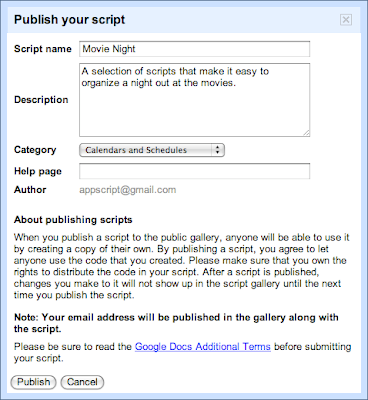
An important new feature of Apps Script is a script gallery, where developers can easily publish their scripts to make them accessible to everyone. You can find the gallery by going to Insert and then selecting Script...in any Google spreadsheet.
Recently, the Google Apps team in New York put together a Movie Night script to help us easily figure out which movies were playing nearby and vote for our favorites - you can read more about it here. Let’s take a closer look at how the script works and how we published it to the new Apps Script Gallery.
We start by bringing up the script editor from a spreadsheet (Tools -> Scripts -> Script editor...).
The first step is to fetch a list of movies playing in a given area at a given time. We use the Google search results for a movie query as follows:
varresults = UrlFetchApp.fetch(http://www.google.com/movies?hl=en&near=+
zipcode +&dq=movies&sort=1).getContentText();
vardoc = Xml.parse(results,true);
We can then use Apps Script’s handy Xml service to parse the results. The next step is to send an email to our friends asking them to vote. This is the slightly tricky part:
- In the spreadsheet, select Form -> Create a form to open the form creation window.
- Add two questions, one titled “Movie”, and the other “Attendee” - we don’t care too much about any other text as it will all be replaced by the script at run-time.
- Close the form creation window.
- In the spreadsheet, select Form -> Go to live form, and copy the ‘formkey’ parameter from the address bar.
- Open the script in the editor, and insert the ‘formkey’ into line 2 of the script.
Phew! That was the tricky part. In summary, we just created a form for the spreadsheet, but instead of using that form directly, we’re going to use a form that is dynamically generated by the script. However, we still need the special key to correctly route submissions to the spreadsheet (and to validate those submissions).
After that, we can put together a list of recipients by calling the contacts service and reading the Gmail ‘Friends’ group:
varcontactGroup = ContactsApp.findContactGroup(’System Group: Friends’);
varpeople = contactGroup.getContacts();
Lastly, we put the movie thumbnails and descriptions in the email body - tailored to each recipient, so that we’ll know who voted:
varemailBody = "";
for(variinmovies) {
// add the image, title etc to emailBody (as HTML)
}
varaddresses = getFriends_();
for(variinaddresses) {
var email = email_header + form_key + emailBody + email_footer;
MailApp.sendEmail(addresses[i],"Movie tonight?", "", {htmlBody: email});
}
Check out the documentation and get started building your scripts - we look forward to seeing your gallery submissions. To share your masterpiece with the world, select Share -> Publish Script...from the script editor - its that easy!
Also, for those attending Google I/O this year, be sure check out the Google Apps Script talk on the Enterprise track.
Posted by Nikhil Singhal, Google Apps Script Engineer
Monday, March 9, 2015
Using Fusion Tables with Apps Script
Editor’s Note: This post written by Ferris Argyle. Ferris is a Sales Engineer with the Enterprise team at Google, and had written fewer than 200 lines of JavaScript before beginning this application. --Ryan Boyd
I started with Apps Script in the same way many of you probably did: writing extensions to spreadsheets. When it was made available in Sites, I wondered whether it could meet our needs for gathering roadmap input from our sales engineering and enterprise deployment teams.
Gathering Roadmap Data
At Google, teams like Enterprise Sales Engineering and Apps Deployment interact with customers and need to share product roadmap ideas to Product Managers. Product Managers use this input to iterate and make sound roadmap decisions. We needed to build a tool to support this requirement. Specifically, this application would be a tool used to gather roadmap input from enterprise sales engineering and deployment teams, providing a unified way of prioritizing customer requirements and supporting product management roadmap decisions. We also needed a way to share actual customer use cases from which these requirements originated.
The Solution
This required bringing together the capabilities of Google Forms, Spreadsheets and Moderator in a single application: form-based user input, dynamically generated structured lists, and ranking.

This sounds like a fairly typical online transaction processing (OLTP) application, and Apps Script provides rich and evolving UI services, including the ability to create grids, event handlers, and now a WYSIWYG GUI Builder; all we needed was a secure, scalable SQL database backend.
One of my geospatial colleagues had done some great work on a demo using a Fusion Tables backend, so I did a little digging and found this example of how to use the APIs in Apps Script (thank you, Fusion Tables Developer Relations).
Using the CRUD Wrappers
Full sample code for this app is available and includes a test harness, required global variables, additional CRUD wrappers, and authorization and Fusion REST calls. It has been published to the Script Gallery under the title "Using Fusion Tables with Apps Script."
The CRUD Wrappers:
/**
 * Read records
 * @param {string} tableId The Id of the Fusion Table in which the record will be created
 * @param {string} selectColumn The Fusion table columns which will returned by the read
 * @param {string} whereColumn The Fusion table column which will be searched to determine whether the record already exists
 * @param {string} whereValue The value to search for in the Fusion Table selectColumn; can be *
 * @return {string} An array containing the read records if no error; the bubbled return code from the Fusion query API if error
 */
function readRecords_(tableId, selectColumn, whereColumn, whereValue) {

  var query = ;
  var foundRecords = [];
  var returnVal = false;
  var tableList = [];
  var row = [];
  var columns = [];
  var rowObj = new Object();

  if (whereValue == *) {
    var query = SELECT +selectColumn+ FROM +tableId;
  } else {
    var query = SELECT +selectColumn+ FROM +tableId+
                 WHERE +whereColumn+ = +whereValue+;
  }

  var foundRecords = fusion_(get,query);

  if (typeof foundRecords == string && foundRecords.search(>> Error)>-1)
  {
    returnVal = foundRecords.search;
  } else if (foundRecords.length > 1 ) {
    //first row is header, so use this to define columns array
    row = foundRecords[0];
    columns = [];
    for (var k = 0; k < row.length; k++) {
      columns[k] = row[k];
    }

    for (var i = 1; i < foundRecords.length; i++) {
      row = foundRecords[i];
      if( row.length > 0 ) {
        //construct object with the row fields
        rowObj = {};
        for (var k = 0; k < row.length; k++) {
          rowObj[columns[k]] = row[k];
        }
        //start new array at zero to conform with javascript conventions
        tableList[i-1] = rowObj;
      }
    }
    returnVal = tableList;
  }

  return returnVal;
}
Now all I needed were CRUD-type (Create, Read, Update, Delete) Apps Script wrappers for the Fusion Tables APIs, and I’d be in business. I started with wrappers which were specific to my application, and then generalized them to make them more re-usable. I’ve provided examples above so you can get a sense of how simple they are to implement.
The result is a dynamically scalable base layer for OLTP applications with the added benefit of powerful web-based visualization, particularly for geospatial data, and without the traditional overhead of managing tablespaces.
I’m a Fusion tables beginner, so I can’t wait to see what you can build with Apps Script and Fusion Tables. You can get started here: Importing data into Fusion Tables, and Writing a Fusion Tables API Application.
Tips:
- Fusion Tables is protected by OAuth.This means that you need to authorize your script to access your tables. The authorization code uses “anonymous” keys and secrets: this does NOT mean that your tables are available anonymously.
- Some assumptions were made in the wrappers which you may wish to change to better match your use case:
- key values are unique in a table
- update automatically adds a record if it’s not already there, and automatically removes duplicates
- Characters such as apostrophes in the data fields will be interpreted as quotation marks and cause SQL errors: you’ll need to escape these to avoid issues.
 | Ferris Argyle Ferris is a Sales Engineer with the Enterprise team at Google. |
Google Apps Script and Recurring Calendar Events
The following code snippet creates a calendar event for all days that are Friday the 13th, so you can remember to avoid bad luck on those days.
var calendar = CalendarApp.getCalendarsByName("My Calendar")[0];
var fridayTheThirteenth = CalendarApp.newRecurrence();
fridayTheThirteenth.addDateExclusion(newDate())
.addDailyRule()
.onlyOnWeekday(CalendarApp.Weekday.FRIDAY)
.onlyOnMonthDay(13);
calendar.createAllDayEventSeries("Bad luck!", new Date(),
fridayTheThirteenth)
The next code snippet adds an event to your calendar to remind you of election day in the United States.
var calendar = CalendarApp.getCalendarsByName("My Calendar")[0];
var usaElectionDay = CalendarApp.newRecurrence();
usaElectionDay.addDateExclusion(newDate())
.addYearlyRule().interval(4)
.onlyInMonth(CalendarApp.Month.NOVEMBER)
.onlyOnWeekday(CalendarApp.Weekday.TUESDAY)
.onlyOnMonthDays([2, 3, 4, 5, 6, 7, 8]);
calendar.createAllDayEventSeries("Go vote!!!", new Date(),
usaElectionDay);
The interface to interact with recurring events is very straight forward and powerful. We were able to easily select all days matching the parameters Friday the 13th, and also to match all Tuesdays in each occurrence of November having a date between 2 and 8. You can quickly and easily describe dates and times of recurring events you’re looking for. For more information, please check out the release notes and updated documentation.
Want to weigh in on this topic? Discuss on Buzz