Wednesday, March 11, 2015
Important Changes to Google Apps Marketplace Billing Policies
When we launched the Google Apps Marketplace in March last year, one of our goals was to make it easy for developers to build, integrate, and sell their apps to Google Apps users. Since then, each vendor in the Google Apps Marketplace has handled their own billing and keeps the revenue they generate. Today, we are making that the official Marketplace policy moving forward: Google will not require vendors to adopt a Google billing API or share any portion of their revenue with us. This will keep more revenue in developers’ pockets, and brings the Google Apps Marketplace policy in line with the Chrome Web Store.
So it’s business as usual -- developers can continue to “bring their own billing” to the Marketplace. Developers retain full control over application pricing and billing, and continue to keep all revenue from Google Apps Marketplace customers.
If you’re in need of a billing solution, we encourage you to try Google Checkout and In-App Payments. Or use one of the many other commercial billing and subscription services available online.
Please join us at our next Google Apps Developer Office Hours on Google+ Hangouts on December 19th at 12 PM PST time to discuss the Google Apps Marketplace and any questions you may have about these changes.
 | Scott McMullan profile | twitter Scott is a Product Manager at Google, where he runs the Apps Marketplace and is extremely lucky to be able to work with amazing developers and companies revolutionizing the way businesses use the web. |

Tuesday, March 10, 2015
Tune in to YouTube at 6pm for a Big Announcement

At 6:00 pm PST this evening, we will be live streaming an important announcement at Google Campfire One about our latest developer efforts on the Google Developers YouTube channel. Dont miss it!
Publish your scripts to the Apps Script Gallery
An important new feature of Apps Script is a script gallery, where developers can easily publish their scripts to make them accessible to everyone. You can find the gallery by going to Insert and then selecting Script...in any Google spreadsheet.
Recently, the Google Apps team in New York put together a Movie Night script to help us easily figure out which movies were playing nearby and vote for our favorites - you can read more about it here. Let’s take a closer look at how the script works and how we published it to the new Apps Script Gallery.
We start by bringing up the script editor from a spreadsheet (Tools -> Scripts -> Script editor...).
The first step is to fetch a list of movies playing in a given area at a given time. We use the Google search results for a movie query as follows:
varresults = UrlFetchApp.fetch(http://www.google.com/movies?hl=en&near=+
zipcode +&dq=movies&sort=1).getContentText();
vardoc = Xml.parse(results,true);
We can then use Apps Script’s handy Xml service to parse the results. The next step is to send an email to our friends asking them to vote. This is the slightly tricky part:
- In the spreadsheet, select Form -> Create a form to open the form creation window.
- Add two questions, one titled “Movie”, and the other “Attendee” - we don’t care too much about any other text as it will all be replaced by the script at run-time.
- Close the form creation window.
- In the spreadsheet, select Form -> Go to live form, and copy the ‘formkey’ parameter from the address bar.
- Open the script in the editor, and insert the ‘formkey’ into line 2 of the script.
Phew! That was the tricky part. In summary, we just created a form for the spreadsheet, but instead of using that form directly, we’re going to use a form that is dynamically generated by the script. However, we still need the special key to correctly route submissions to the spreadsheet (and to validate those submissions).
After that, we can put together a list of recipients by calling the contacts service and reading the Gmail ‘Friends’ group:
varcontactGroup = ContactsApp.findContactGroup(’System Group: Friends’);
varpeople = contactGroup.getContacts();
Lastly, we put the movie thumbnails and descriptions in the email body - tailored to each recipient, so that we’ll know who voted:
varemailBody = "";
for(variinmovies) {
// add the image, title etc to emailBody (as HTML)
}
varaddresses = getFriends_();
for(variinaddresses) {
var email = email_header + form_key + emailBody + email_footer;
MailApp.sendEmail(addresses[i],"Movie tonight?", "", {htmlBody: email});
}
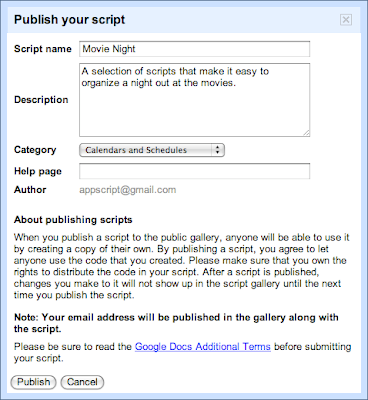
Check out the documentation and get started building your scripts - we look forward to seeing your gallery submissions. To share your masterpiece with the world, select Share -> Publish Script...from the script editor - its that easy!
Also, for those attending Google I/O this year, be sure check out the Google Apps Script talk on the Enterprise track.
Posted by Nikhil Singhal, Google Apps Script Engineer
Monday, March 9, 2015
New features in Admin SDK Custom user attributes and opening up access to all domain users
By Muzammil Esmail, Product Manager, Google for Work
Please feel free to go through our documentation to go learn more about the Admin SDK, and specifically the Directory API. Happy hacking!
Wednesday, March 4, 2015
How to Get Better Clipart Results on Google


I hope youre able to use these tips to help find better clipart images! Do you have any google images tips that I missed? Let me know!
In Part 5, I mentioned that there was an easy way to change the colors of an image that you find. For next weeks poll, Ill be adding that!
Monday, March 2, 2015
How to Add a Followers Button for Bloglovin’


How to Make a Simple Frame in PowerPoint


Sunday, March 1, 2015
Study Guides Strategies to Think Like a Genius!
 Study Guides & Strategies: http://www.studygs.net/
Exercises & Games: http://www.studygs.net/exercises.htm
Thinking Like a Genius: http://www.studygs.net/genius.htm
 Collaborative projects are developed across institutional, cultural and national boundaries. I resist advertising, registration, and distracting graphics or features that may interfere with maximizing learner access."
- Look at problems in many different ways, and find new perspectives that no one else has taken (or no one else has publicized!)
- Visualize!
- Produce! A distinguishing characteristic of genius is productivity.
- Make novel combinations. Combine, and recombine, ideas, images, and thoughts into different combinations no matter how incongruent or unusual.
- Form relationships; make connections between dissimilar subjects.
- Think in opposites.
- Think metaphorically.
- Prepare yourself for chance.
- The practice of genius
Saturday, February 28, 2015
Social Media Infographics Built to Last
 Goldmine: 60 Informative Social Media Infographics
REALITY CHECK!
When you first discover a social media infographics goldmine, you are like...WOW! Now, I can really spice up my presentations with some sizzling social media infographics to stimulate the audience. But, then you start to look at the statistics found in these infographics, and then you realize (I hope!) that much of the data shared are outdated and kind of useless (at the moment of discovery).
Yes, the infographics look cool, but should coolness override showing relevant and updated data?
The problem with many social media infographics is that the social media numbers are still radically changing, and will so for some time to come. For example, Facebook has around 650 million users now, but is expected to grow to 1 billion by 2012. Or worse yet, your super infographic shows 400 million Facebook users!
So, can we find social media infographics that are built to last (at least for a year or two!)?

FUTURE INFOGRAPHICS?
 For finding updated Facebook infographics/charts (not totally cool, but at least reasonably updated), Socialbakers is a great place to find tons of stats, including informative details on your country. But, you will still have to manually update your slides with the latest Facebook stats once a while to ensure that they are updated and still relevant.
Wouldnt it be cool if you could use a dynamic plug-in or widget plucked into your presentation (PowerPoint/Keynote), which via the Internet could continuously keep your social media stats updated and relevant? Better yet, it allowed presenters to manipulate or play with the data, and then we could visually experience the process from inception to present, besides the final snapshot. Gapminder is a perfect example of how I would love my dynamic (social media) infographics to work.
Another good example would be Garys Social Media Count:
Besides these three (3) examples above, I am pretty sure that there are many more dynamic social media infographics to discover and use, and that I hope YOU can share with US (Thank you!). I will add them below as we discover together.
In a nut shell, dynamic infographics should:
- Provide easy access to continuously updated and relevant data/information.
- Have an embed feature (script/widget/plug-in) making it easy to add to our presentation (or website).
- Be self-updating every time you access the Internet.
- Show the changes over time (start to present) of what it is illustrating (if applicable).
- Enable us to manipulate the data/information (if applicable).
Thursday, February 26, 2015
Get Your Kids To Write Their Name on Their Work!
Years ago I learned the first verse of this song from a preschool teacher at my previous job. So, my first year teaching Kindergarten, I obviously used it a LOT with my kiddos.
I was absolutely amazed when my students added new verses to the song! Thats right... my students wrote the second and third verses of this song! I absolutely love how creative they were and I use all three verses with my students nowadays!
I added this file to TPT as a PowerPoint file so you can insert your own name into it, and I even embedded the font into the document so it should load up on your computer perfectly. I havent actually done the embedding before so I hope it works!
Click the picture below to download the song!

How do you get your kiddos to remember to write their names on their paper?
How to Make a Bibliography Easily!
What format do you use? APA? MLA? Chicago? Turabian? What do you need to cite? Books? Websites? Journals? Newspapers? Whatever it is... you can probably make a bibliography in 5 minutes... no joke.


For next weeks poll, Im going to add the option how to search on any blog, which is particularly helpful when a pin leaders you to a main blog page and not directly to the post you want!
Wednesday, February 25, 2015
How to Put a Watermark on Your Photo

Again, more than half of you voted for this in the poll!

I included two versions of this tutorial. In light blue, youll find directions on how to do everything right in GimpShop. Honestly, this is what I tend to do, as Im pretty comfortable using the program. For those of you who feel overwhelmed by the Gimp interface, I included alternate directions (in a medium blue) which include a brief portion in Gimp, and the remainder of the tutorial in Gimp. They both have the same effect, so its totally up to you!

Now... onto the tutorial!


Now, for the tutorial that incorporates PowerPoint!


As far as next weeks poll is concerned, I just came across a MAJOR find in PowerPoint... Do you remember my previous post on giving a picture a transparent background? Well... I just stumbled across a way to do this right in PowerPoint!!! So obviously that will be on next weeks poll!

How to See What Your Most Popular Blog Posts Are


Now, for the quick and easy tutorial!

For next weeks poll, Ill add another Blogger tutorial... how to see how many people follow you by email!