Tuesday, March 10, 2015
Tune in to YouTube at 6pm for a Big Announcement

At 6:00 pm PST this evening, we will be live streaming an important announcement at Google Campfire One about our latest developer efforts on the Google Developers YouTube channel. Dont miss it!

The role of a business analyst in agile
Here are is a summary of our conversation:
- How many BAs can articulate the goals and objectives of their company, team, or project? Start here if you cannot.
- Even if you are able to articulate the goals and objectives - can your team? Without understanding the project goals and objectives the team doesnt have enough information to help them make decisions about scope and priorities and often makes decisions based on Is this helping somebody? which can increase the scope of the project.
- BAs can help facilitate the alignment of priorities and goals - enabling the business to speak to the development team with one voice.
- Facilitate requirements and a common understanding of the proposed system through inclusive modeling techniques (eg. user story maps, silent brainstorming, product box - see more here)
- Facilitate the acceptance of change (rather than the restriction of it).
- BAs dont do any less analysis, but they will end up doing less documentation. This reminds me of this tweet:
“Documents we write communicate our good thinking. You can write one without thinking. You can communicate good ideas without a document.” – Jeff Patton (Jan. 19, 2011 - twitter)
- As a BA, if you need to create a document, it will more likely be after the story is complete rather than before creating the story. Some additional guidelines for documentation on agile projects can be found here.
- Collaborate with testers who share many of the same concerns about priorities, goals, scope, and requirements.
- One thing that doesnt change is the need to work with the business as any software produced by the team may change the business processes. Even with iterative delivery, there will be adjustments to be made.
Optimizing Drive API calls
Ever look at the data returned when using the Drive API? A files.list call, even if just returning a single file, can yield upwards of 4kb of data. Drive has a rich set of metadata about files, but chances are your application only needs a small fraction of what’s available.
One of the simplest but most effective optimizations you can make when building apps with the Drive API is limiting the amount of data returned to only those fields needed for your particular use case. The fields query parameter gives you that control, and the results can be dramatic.
A simple example of this is using the files.list call to display a list of files to a user. The naive query, https://www.googleapis.com/drive/v2/files?maxResults=100, generated more than 380kb of data when I ran it against my own corpus. But to render this list nicely, an app only needs a few bits of information -- the document title, icon & thumbnail URLs, the mime type, and of course the file ID.
Using the fields query parameter, the results can be trimmed to just the necessary fields and those needed for fetching subsequent pages of data. The optimized query is https://www.googleapis.com/drive/v2/files?maxResults=100&fields=items(iconLink%2Cid%2Ckind%2CmimeType%2CthumbnailLink%2Ctitle)%2CnextPageToken.
After modifying the query the resulting data was only 30k. That’s more than a 90% reduction in data size! Besides reducing the amount of data on the wire, these hints also enable us to further optimize how queries are processed. Not only is there less data to send, but also less time spent getting it in the first place.
 | Steven Bazyl profile | twitter Steve is a Developer Advocate for Google Drive and enjoys helping developers build better apps. |
Publish your scripts to the Apps Script Gallery
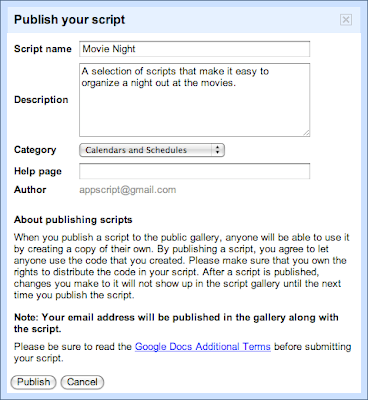
An important new feature of Apps Script is a script gallery, where developers can easily publish their scripts to make them accessible to everyone. You can find the gallery by going to Insert and then selecting Script...in any Google spreadsheet.
Recently, the Google Apps team in New York put together a Movie Night script to help us easily figure out which movies were playing nearby and vote for our favorites - you can read more about it here. Let’s take a closer look at how the script works and how we published it to the new Apps Script Gallery.
We start by bringing up the script editor from a spreadsheet (Tools -> Scripts -> Script editor...).
The first step is to fetch a list of movies playing in a given area at a given time. We use the Google search results for a movie query as follows:
varresults = UrlFetchApp.fetch(http://www.google.com/movies?hl=en&near=+
zipcode +&dq=movies&sort=1).getContentText();
vardoc = Xml.parse(results,true);
We can then use Apps Script’s handy Xml service to parse the results. The next step is to send an email to our friends asking them to vote. This is the slightly tricky part:
- In the spreadsheet, select Form -> Create a form to open the form creation window.
- Add two questions, one titled “Movie”, and the other “Attendee” - we don’t care too much about any other text as it will all be replaced by the script at run-time.
- Close the form creation window.
- In the spreadsheet, select Form -> Go to live form, and copy the ‘formkey’ parameter from the address bar.
- Open the script in the editor, and insert the ‘formkey’ into line 2 of the script.
Phew! That was the tricky part. In summary, we just created a form for the spreadsheet, but instead of using that form directly, we’re going to use a form that is dynamically generated by the script. However, we still need the special key to correctly route submissions to the spreadsheet (and to validate those submissions).
After that, we can put together a list of recipients by calling the contacts service and reading the Gmail ‘Friends’ group:
varcontactGroup = ContactsApp.findContactGroup(’System Group: Friends’);
varpeople = contactGroup.getContacts();
Lastly, we put the movie thumbnails and descriptions in the email body - tailored to each recipient, so that we’ll know who voted:
varemailBody = "";
for(variinmovies) {
// add the image, title etc to emailBody (as HTML)
}
varaddresses = getFriends_();
for(variinaddresses) {
var email = email_header + form_key + emailBody + email_footer;
MailApp.sendEmail(addresses[i],"Movie tonight?", "", {htmlBody: email});
}
Check out the documentation and get started building your scripts - we look forward to seeing your gallery submissions. To share your masterpiece with the world, select Share -> Publish Script...from the script editor - its that easy!
Also, for those attending Google I/O this year, be sure check out the Google Apps Script talk on the Enterprise track.
Posted by Nikhil Singhal, Google Apps Script Engineer
Monday, March 9, 2015
Using Fusion Tables with Apps Script
Editor’s Note: This post written by Ferris Argyle. Ferris is a Sales Engineer with the Enterprise team at Google, and had written fewer than 200 lines of JavaScript before beginning this application. --Ryan Boyd
I started with Apps Script in the same way many of you probably did: writing extensions to spreadsheets. When it was made available in Sites, I wondered whether it could meet our needs for gathering roadmap input from our sales engineering and enterprise deployment teams.
Gathering Roadmap Data
At Google, teams like Enterprise Sales Engineering and Apps Deployment interact with customers and need to share product roadmap ideas to Product Managers. Product Managers use this input to iterate and make sound roadmap decisions. We needed to build a tool to support this requirement. Specifically, this application would be a tool used to gather roadmap input from enterprise sales engineering and deployment teams, providing a unified way of prioritizing customer requirements and supporting product management roadmap decisions. We also needed a way to share actual customer use cases from which these requirements originated.
The Solution
This required bringing together the capabilities of Google Forms, Spreadsheets and Moderator in a single application: form-based user input, dynamically generated structured lists, and ranking.

This sounds like a fairly typical online transaction processing (OLTP) application, and Apps Script provides rich and evolving UI services, including the ability to create grids, event handlers, and now a WYSIWYG GUI Builder; all we needed was a secure, scalable SQL database backend.
One of my geospatial colleagues had done some great work on a demo using a Fusion Tables backend, so I did a little digging and found this example of how to use the APIs in Apps Script (thank you, Fusion Tables Developer Relations).
Using the CRUD Wrappers
Full sample code for this app is available and includes a test harness, required global variables, additional CRUD wrappers, and authorization and Fusion REST calls. It has been published to the Script Gallery under the title "Using Fusion Tables with Apps Script."
The CRUD Wrappers:
/**
 * Read records
 * @param {string} tableId The Id of the Fusion Table in which the record will be created
 * @param {string} selectColumn The Fusion table columns which will returned by the read
 * @param {string} whereColumn The Fusion table column which will be searched to determine whether the record already exists
 * @param {string} whereValue The value to search for in the Fusion Table selectColumn; can be *
 * @return {string} An array containing the read records if no error; the bubbled return code from the Fusion query API if error
 */
function readRecords_(tableId, selectColumn, whereColumn, whereValue) {

  var query = ;
  var foundRecords = [];
  var returnVal = false;
  var tableList = [];
  var row = [];
  var columns = [];
  var rowObj = new Object();

  if (whereValue == *) {
    var query = SELECT +selectColumn+ FROM +tableId;
  } else {
    var query = SELECT +selectColumn+ FROM +tableId+
                 WHERE +whereColumn+ = +whereValue+;
  }

  var foundRecords = fusion_(get,query);

  if (typeof foundRecords == string && foundRecords.search(>> Error)>-1)
  {
    returnVal = foundRecords.search;
  } else if (foundRecords.length > 1 ) {
    //first row is header, so use this to define columns array
    row = foundRecords[0];
    columns = [];
    for (var k = 0; k < row.length; k++) {
      columns[k] = row[k];
    }

    for (var i = 1; i < foundRecords.length; i++) {
      row = foundRecords[i];
      if( row.length > 0 ) {
        //construct object with the row fields
        rowObj = {};
        for (var k = 0; k < row.length; k++) {
          rowObj[columns[k]] = row[k];
        }
        //start new array at zero to conform with javascript conventions
        tableList[i-1] = rowObj;
      }
    }
    returnVal = tableList;
  }

  return returnVal;
}
Now all I needed were CRUD-type (Create, Read, Update, Delete) Apps Script wrappers for the Fusion Tables APIs, and I’d be in business. I started with wrappers which were specific to my application, and then generalized them to make them more re-usable. I’ve provided examples above so you can get a sense of how simple they are to implement.
The result is a dynamically scalable base layer for OLTP applications with the added benefit of powerful web-based visualization, particularly for geospatial data, and without the traditional overhead of managing tablespaces.
I’m a Fusion tables beginner, so I can’t wait to see what you can build with Apps Script and Fusion Tables. You can get started here: Importing data into Fusion Tables, and Writing a Fusion Tables API Application.
Tips:
- Fusion Tables is protected by OAuth.This means that you need to authorize your script to access your tables. The authorization code uses “anonymous” keys and secrets: this does NOT mean that your tables are available anonymously.
- Some assumptions were made in the wrappers which you may wish to change to better match your use case:
- key values are unique in a table
- update automatically adds a record if it’s not already there, and automatically removes duplicates
- Characters such as apostrophes in the data fields will be interpreted as quotation marks and cause SQL errors: you’ll need to escape these to avoid issues.
 | Ferris Argyle Ferris is a Sales Engineer with the Enterprise team at Google. |