Friday, March 13, 2015
User Scenarios and Lean Solutions
Well written user scenarios put all the features into a flow that is relevant to the users value stream. They can help us design a solution as a unified value stream rather than just a bunch of features put together. From Lean Solutions:
"Companies must provide the goods and services consumers actually want, when and where they are wanted, without burdening the consumer."For more information and an example, check out Jeff Pattons stickyminds article.

Thursday, March 12, 2015
Deprecating Script Gallery in the old version of Google Sheets
Starting today, we are deprecating the option for developers to publish to the script gallery. No new gallery submissions will be accepted or approved, but scripts already present in the gallery will remain accessible (via the old version of Sheets).
If you rely on distributing or consuming your script from the script gallery, then please convert your script into an add-on and follow the add-on publication instructions.
FitNesse and todays date with net
The test above is faily simple and I could write it like this in the wiki as a Column Fixture (using the fitSharp.dll to test C# code)
The problem of course is that this test will start failing on January 5, 2013 when Mary turns 18. Also, it does not perform the boundary testing that I would like it to do in order to test someone who is 18 today vs. someone who will turn 18 tomorrow. In order to improve this test, I investigated some other date functions in FitNesse and a plugin by James Carr that allowed you to add days to the current date. These work ok for smaller calculations like "Given document ABC, When it is 30 days old, Then archive it". However, this would be a little more cumbersome for birth dates when adding 18 years (esp. with leap year calculations) and the !today function in FitNesse does not work in ColumnFixture wiki tables. So, I found a simple way to meet my requirement.
First, I wrote a class in C# that accepts two parameters to Add or Subtract Years and Days to the current date. The class uses C#s simple DateTime addition to add or subtract the years/days from today and returns the result. You could easily extend this to add months or add other functionality required in your tests:
In FitNesse, the final result including the acceptance criteria above looks like this:

(Note: The example above should probably be written as a unit test because it is fairly straightforward, but it simply illustrates how to use the date logic that Im using as part of larger acceptance tests.)
Code updates required for Apps Script advanced services
The APIs for three of Apps Scripts advanced services — Analytics, BigQuery, and Prediction — will undergo breaking changes on Monday, November 18. If you dont update your code to the new syntax before then, youll receive error messages such as Required parameter is missing.
Advanced services allow you to easily connect to certain public Google APIs from Apps Script. Were working to expand and improve our advanced services, and as a side effect some methods and parameters that were incorrectly listed as optional are now required.
On November 18, these services will switch to use the new method signatures shown in the tables below. To learn how new arguments should be structured, refer to the documentation for the underlying API. For example, the documentation for the BigQuery services Jobs.query()method shows the valid properties for the resource object in the "Request body" section of the page.
| Old | New |
|---|---|
Analytics.Management.Uploads | |
|
|
BigQuery.Datasets | |
|
|
|
|
BigQuery.Jobs | |
|
|
|
|
BigQuery.Tabledata | |
|
|
BigQuery.Tables | |
|
|
|
|
Prediction.Hostedmodels | |
|
|
Prediction.Trainedmodels | |
|
|
|
|
|
|
If you want to prepare your code ahead of time, you can add a try/catch around your existing code that retries with the new method signature if the old one fails. For example, the following sample applies this approach to the BigQuery services Jobs.query() method:
  var result;
  try {
    result = BigQuery.Jobs.query(projectId, query, {
      timeoutMs: 10000
    });
  } catch (e) {
    // Refer to the BigQuery documentation for the structure of the
    // resource object.
    var resource = {
      query: query,
      timeoutMs: 1000
    };
    result = BigQuery.Jobs.query(resource, projectId);
  }
We apologize for inconvenience and look forward to sharing exciting news about advanced services in the coming weeks.
 | Eric Koleda profile Eric is a Developer Programs Engineer based in NYC on the Google Apps Script team. Hes previously worked with the AdWords API and enterprise content management software. |
Wednesday, March 11, 2015
Google Apps Script with UI Properties and New Sites
The biggest news is that UiApp is now available to all users! UiApp allows you to build user interfaces, giving scripts the ability to show a friendly interface, which is a necessity for less technical users. We’re very happy to make this formerly Premier feature available to everyone. For more information, see the UiApp code samples and reference documentation.
Next, weve added ScriptProperties and UserProperties. These features allow scripts to store key:value data per user, or per script. ScriptProperties are a great place to store passwords and other script-specific information. UserProperties are useful for storing things like user preferences. For details on using these properties, check out the documentation.
Weve added some new functionality to Sites and cleaned up some inconsistencies and bugs. This has greatly simplified the API, while at the same time making it more powerful and flexible. Some of these improvements have required changes to the API, which is documented in the SitesApp reference guide.
Finally, weve updated the Apps Script editor with a bunch of convenient features. You can perform Find & Replace in the editor. Script revisions are now available, so that you can see a history of changes to your scripts. Lastly, we’ve added the ability to change the timezone of a script, something that we hope will make developers’ lives easier.
The remaining items in this release are listed in the Release Notes. Were look forward to hearing your feedback about all the new changes, and would love to see what you do with the new features. Some large improvements and features are in our pipeline, so stay tuned!
Want to weigh in on this topic? Discuss on Buzz
But does it work an agile metric
After implementing several changes to our process, my projects over the years seem to have improved significantly. But how do you measure this? While no metric should stand alone, here is one quality metric that Im experimenting with:
((# of high defects * 5) + (# of medium defects * 3) + (# of low defects * 1) / Total project hours * 100.
The troubled project had a score of 18.7. My most recent project score was 1.2 which is almost a 1600% improvement on quality. I think Ill keep doing this agile thing.
P.S. Im heading to Agile2010 this summer. Give me a shout if you are going and we can find ways to de-brief together over lunch or dinner in Orlando.
Announcing the Google Drive Installation Scope
Not long after the Drive SDK was first released, we started receiving requests for a simpler developer and user experience. It took too long for developers to get started, and users were sometimes confused by the ways apps were installed. We’re now announcing a new feature that helps address these concerns: the Drive installation scope.
As the name suggests, this new OAuth 2.0 scope lets users install an app by approving an access request. Along with all the other levels of access you can request from users, it’s now possible to ask users for permission to install your app in their Drive.
This means that an app, or an app’s promotion page, could present an option to “Install this app in Google Drive,” and then users who select this option would interact with an OAuth 2.0 dialog that requests the installation scope. For example, the following script creates an “Add to Google Drive” button that could be embedded in a web page:
<script src="https://apis.google.com/js/client.js"></script>
<script>
var CLIENT_ID = 123456789.apps.googleusercontent.com
function installDriveApp() {
  gapi.auth.authorize({
    client_id: CLIENT_ID,
    scope: https://www.googleapis.com/auth/drive.install,
    immediate: false
  }, function(authResult) { // Callback when installation complete });
}
</script>
<button onclick="installDriveApp();">Add to Google Drive</button>
On clicking this button, the user sees a standard OAuth 2.0 dialog box like the following (text for the installation scope is expanded in this example):

When the user approves these scopes, the app is installed for the user. Then, once it is installed this way, the app appears in the user’s Open with options as well as the Create > more contextual menu for files of registered MIME types.
Apps still need to specify primary and secondary MIME types when they enable the Drive SDK in the APIs console. But, unlike before, there is no need to install via the Chrome Web Store in order to get UI integration -- web store integration is entirely optional (though recommended).
Essentially, Drive now offers three levels of integration, which apps can combine according to their needs:
- Simple API access with the Drive API enabled.
- UI integration, with API access, the Drive SDK enabled, and OAuth-based installation.
- CWS-based integration, with all of the above plus web store installation and marketing/upsell features.
For guidance in getting started integrating your app in any of these ways, see “Build a Drive Web App” or "Integrate with the Drive UI" in the SDK documentation.
We still recommend that developers consider the many benefits of creating a Chrome Web Store listing for their application. In addition to providing ease of installation for users “shopping” in the Drive app collection, a web store listing provides helpful features to market and promote an app. Our usage analysis shows that apps in the Chrome Web Store receive more usage than apps that aren’t listed. But now, with the installation scope, you can get started developing and testing your app more quickly and then list it in the Chrome Web Store when you’re ready.
If you have any questions about the installation scope, don’t hesitate to let us know on our Stack Overflow tag, google-drive-sdk.
 | Eric Gilmore Eric is a technical writer working with the Developer Relations group. Previously dedicated to Google Apps APIs, he is now busy writing about all aspects of the Google Drive SDK. |
Using open source libraries in Apps Script
JavaScript has long been the de facto choice for client-side web development, but lately its been catching on server-side as well. While we like to think that Apps Script has contributed to the trend, projects such as Mozillas Rhino and Node.js have also done a great deal to popularize the concept. As a result, developers have created a wealth of new open-source JavaScript libraries, and in this post well talk about how you can leverage them in your Apps Script projects.
Underscore
One library I wanted to use in my scripts was Underscore, which describes itself as "a utility-belt library for JavaScript." It provides a wealth of helper functions that make coding in JavaScript cleaner and more enjoyable. Take, for example, the simple situation where you want to log each value in a range.
// Using plain JavaScript.
for (var i = 0; i < values.length; i++) {
  for (var j = 0; j < values[i].length; j++) {
    Logger.log(values[i][j]);
  }
}
Although writing for loops like this is a common pattern, its a fair amount of typing and you need to keep track of counter variables that serve little purpose. Underscore provides an each() method that makes the process much simpler.
// Using Underscore.
_.each(values, function(row) {
  _.each(row, function(cell) {
    Logger.log(cell);
  });
});
Passing anonymous functions as parameters takes a little getting used to, but if youve worked with jQuery, the pattern feels familiar.
Underscore also has some great extensions, and Underscore.string provides some useful string manipulation features. My favorite is the ability to use sprintf() notation in JavaScript, which can simplify the process of building complex strings.
// Using plain JavaScript.
var message = "Hello, " + firstName + " " + lastName + ". Your wait time is " + wait + " minutes.";

// Using Underscore.string.
var message = _.sprintf("Hello, %s %s. Your wait time is %d minutes.", firstName, lastName, wait);
Integrating with Apps Script
The simplest way to include the Underscore library in a project would be to paste its source code directly into your script, but this would lead to a lot of duplication if you end up using it in multiple projects. Earlier this year, we released a feature in Apps Script called libraries that allows you to share scripts and include them in other projects. Packaging a JavaScript library like Underscore as an Apps Script library is possible, but requires some helper functions to work correctly.
When Underscore loads, it creates a global variable named "_" that you use to access its functionality. Apps Script specifically prevents the global scope of a library from interfering with the global scope of the script that includes it, so I built a helper function into the library to pass the variable around.
// In the library.
function load() {
  return _;
}
In my script that includes the library, I simply make a call to that function and use the result to set up my own "_" variable.
// In the script that includes the library.
var _ = Underscore.load();
To try my copy of the Underscore library in your own project, use the project key "MGwgKN2Th03tJ5OdmlzB8KPxhMjh3Sh48" and the code snippet above. You can browse the full source code here.
Using it with the HtmlService
Using the code above, I could easily include the library in my server-side Apps Script code, but I also wanted to use these functions client-side in my web app served by the HtmlService. To accomplish this, I created a copy of the Underscore source code, wrapped it in <script> tags, and stored them in Html files (instead of Script files). These snippet files could then be included in my web apps HtmlTemplates using the helper function below.
// In the library.
var FILES = [Underscore.js, Underscore.string.js, Init.js];
function include(output) {
  for (var i = 0; i < FILES.length; i++) {
    var file = FILES[i];
    output.append(
        HtmlService.createHtmlOutputFromFile(file).getContent());
  }
}
This function was called in the web apps HtmlTemplate using the simple code below.
<!-- In the web app that includes the library. -->
<html>
  <head>
    <? Underscore.include(output) ?>
  </head>
  ...
Other libraries
Integrating with Underscore was fairly easy, but trying the same approach with other open-source libraries may be a bit more complicated. Some libraries wont run correctly in the Apps Script environment if they rely on certain capabilities within the browser or Node.js runtime. Additionally, to be served by the HtmlService, the code must pass the Caja engines strict validation, which many popular libraries dont meet. In some cases, you may be able to manually patch the library to work around these issue, but this usually requires a deep understanding of how the library works.
We hope youre inspired to use Underscore and other open-source libraries in your own work. If you find a library that works great with Apps Script, share it with me on Google+ and Ill help get the word out.
| Eric Koleda profile Eric is a Developer Programs Engineer based in NYC on the Google Apps Script team. Hes previously worked with the AdWords API and enterprise content management software. |
Google Groups and Google Apps Script
Google Groups is a great way to foster communication over email and on the web, connecting people and allowing them to participate in and read archived discussions. Today, we are introducing the Google Groups Service in Google Apps Script. Groups Service will allow a script to check if a user belongs to a certain group, or to enumerate the members of a particular group. The Google Groups Service works with groups created through the Google Groups web interface as well as groups created by enterprise customers with their own domain using the control panel and the Google Apps Provisioning API.
This opens a wide range of possibilities, such as allowing a script with Ui Services to show additional buttons to the members of a particular group - for example teachers or managers - and sending customized emails to all the members of a group.
Here are a few sample scripts to help you get started with the new API. To try out these samples, select Create > New Spreadsheet and then Tools > Script Editor from the menu. You can then copy the code into the script editor. The scripts’ output will appear back in the spreadsheet.
List Your Google Groups
The Groups Services can be used to fetch a list of the Google Groups of which you’re a member.
Below is a function which returns all the groups of which you’re a member. Copy and paste it into the script editor and run it. The editor will prompt you to grant READ access to the Google Groups Service before the script can run successfully.
If you receive a message stating that you’re not a member of any group, open up Google Groups and join any of the thousands of groups there.
function showMyGroups() {
  var groups = GroupsApp.getGroups();
  var s;
  if (groups.length > 0) {
    s = "You belong to " + groups.length + " groups: ";
    for (var i = 0; i < groups.length; i++) {
      var group = groups[i];
      if (i > 0) {
        s += ", ";
      }
      s += group.getEmail();
    }
  } else {
    s = "You are not a member of any group!";
  }
  Browser.msgBox(s);
}
Test Group Membership
Brendan plays trumpet in a band. He also runs the band’s website and updates its Google+ page. He’s created a web application with Google Apps Script and now he wants to add to it some additional features for members of the band. Being a model Google user, he’s already subscribed each band member to a Google Group. Although building a complete UI with Google Apps Script is beyond the scope of this article, Brendan could adapt the following function to help make additional features available only to members of that Google Group.
Of course, this is not just useful for tech-savvy trumpet players: schools may wish to make certain features available just to teachers or others just to students; businesses may need to offer certain functionality to people managers or simply to show on a page or in a UI operations of interest to those in a particular department. Before running this example yourself, replace test@example.com with the email address of any group of which you’re a member.
Note: the group’s member list must be visible to the user running the script. Generally, this means you must yourself be a member of a group to successfully test if another user is a member of that same group. Additionally, group owners and managers can restrict member list access to group owners and managers. For such groups, you must be an owner or manager of the group to query membership.
function testGroupMembership() {
  var groupEmail = "test@example.com";
  var group = GroupsApp.getGroupByName(groupEmail);
  if (group.hasUser(Session.getActiveUser().getEmail())) {
    Browser.msgBox("You are a member of " + groupEmail);
  } else {
    Browser.msgBox("You are not a member of " + groupEmail);
  }
}
Get a List of Group Members
Sending an email to the group’s email address forwards that message to all the members of the group. Specifically, that message is forwarded to all those members who subscribe by email. Indeed, for many users, discussion over email is the principal feature of Google Groups.
Suppose, however, that you want to send a customised message to those same people. Provided you have permission to view a group’s member list, the Google Groups Service can be used to fetch the usernames of all the members of a group. The following script demonstrates how to fetch this list and then send an email to each member.
Before running this script, consider if you actually want to send a very silly message to all the members of the group. It may be advisable just to examine how the script works!
function sendCustomizedEmail() {
  var groupEmail = "test@example.com";
  var group = GroupsApp.getGroupByEmail(groupEmail);
  var users = group.getUsers();
  for (var i = 0; i < users.length; i++) {
    var user = users[i];
    MailApp.sendEmail(user.getEmail(), "Thank you!",
        "Hello " + user.getEmail() + ", thank you for joining this group!");
  }
}
Find Group Managers
The Google Groups Service lets you query a user’s role within a group. One possible role is MANAGER (the other roles are described in detail in the Google Groups Service’s documentation): these users can perform administrative tasks on the group, such as renaming the group and accepting membership requests. Any user’s Role can be queried with the help of the Group class’ getRole() method.
This sample function may be used to fetch a list of a group’s managers. Once again, you must have access to the group’s member list for this function to run successfully:
function getGroupOwners(group) {
  var users = group.getUsers();
  var managers = [];
  for (var i = 0; i < users.length; i++) {
    var user = users[i];
    if (group.getRole(user) == GroupsApp.Role.MANAGER) {
      managers.push(user);
    }
  }
  return managers;
}
Let us know what you end up building, or if you have any questions about this new functionality, by posting in the Apps Script forum.
 | Trevor Johnston Trevor is a software engineer at Google. Before joining the Google Apps Script team in New York, he developed travel products in Switzerland and supported Google’s help centers in Dublin. Prior to joining Google, he worked on Lotus branded products at IBM’s Dublin Software Lab. |
Important Changes to Google Apps Marketplace Billing Policies
When we launched the Google Apps Marketplace in March last year, one of our goals was to make it easy for developers to build, integrate, and sell their apps to Google Apps users. Since then, each vendor in the Google Apps Marketplace has handled their own billing and keeps the revenue they generate. Today, we are making that the official Marketplace policy moving forward: Google will not require vendors to adopt a Google billing API or share any portion of their revenue with us. This will keep more revenue in developers’ pockets, and brings the Google Apps Marketplace policy in line with the Chrome Web Store.
So it’s business as usual -- developers can continue to “bring their own billing” to the Marketplace. Developers retain full control over application pricing and billing, and continue to keep all revenue from Google Apps Marketplace customers.
If you’re in need of a billing solution, we encourage you to try Google Checkout and In-App Payments. Or use one of the many other commercial billing and subscription services available online.
Please join us at our next Google Apps Developer Office Hours on Google+ Hangouts on December 19th at 12 PM PST time to discuss the Google Apps Marketplace and any questions you may have about these changes.
 | Scott McMullan profile | twitter Scott is a Product Manager at Google, where he runs the Apps Marketplace and is extremely lucky to be able to work with amazing developers and companies revolutionizing the way businesses use the web. |
Tuesday, March 10, 2015
Calendar API v3 Best Practices Recurring Events
We recently launched a new version of the Google Calendar API. In addition to the advantages it gains from Googles new infrastructure for APIs, Google Calendar API v3 has a number of improvements that are specific to Google Calendar. In this blog post we’ll highlight a topic that often causes confusion for developers using the Google Calendar API: recurring events.
A recurring event is a template for a series of events that usually happen with some regularity, for example daily or bi-weekly. To create a recurring event, the client specifies the first instance of the event and includes one or more rules that describe when future events should occur. Google Calendar will then expand the event into the specified occurrences. Individual events in a series may be changed, or even deleted. Such events become exceptions: they are still part of the series, but changes are preserved even if the recurring event itself is updated.
Lets create a daily recurring event that will occur every weekday of the current week (as specified by the recurrence rule on the last line):
POST https://www.googleapis.com/calendar/v3/calendars/primary/events

{
  "summary": "Daily project sync",
  "start": {
    "dateTime": "2011-12-12T10:00:00",
    "timeZone": "Europe/Zurich"
  },
  "end": {
    "dateTime": "2011-12-12T10:15:00",
    "timeZone": "Europe/Zurich"
  },
  "recurrence": [
    "RRULE:FREQ=DAILY;COUNT=5"
  ]
}
When added to a calendar, this will turn into five different events. The recurrence rule is specified according to the iCalendar format (see RFC 5545). Note, however, that, in contrast to the previous versions of the Google Calendar API, the start and end times are specified the same way as for single instance events, and not with iCalendar syntax. Further, note that a timezone identifier for both the start and end time is always required for recurring events, so that expansion happens correctly if part of a series occurs during daylight savings time.
By default, when listing events on a calendar, recurring events and all exceptions (including canceled events) are returned. To avoid having to expand recurring events, a client can set the singleEvents query parameter to true, like in the previous versions of the API. Doing so excludes the recurring events, but includes all expanded instances.
Another way to get instances of a recurring event is to use the instances collection, which is a new feature of this API version. To list all instances of the daily event that we just created, we can use a query like this:
GET https://www.googleapis.com/calendar/v3/calendars/primary/events/7n6f7a9g8a483r95t8en23rfs4/instances
which returns something like this:
{
  ...
  "items": [
  {
    "kind": "calendar#event",
    "id": "7n6f7a9g8a483r95t8en23rfs4_20111212T090000Z",
    "summary": "Daily project sync",
    "start": {
      "dateTime": "2011-12-12T10:00:00+01:00"
    },
    "end": {
      "dateTime": "2011-12-12T10:15:00+01:00"
    },
    "recurringEventId": "7n6f7a9g8a483r95t8en23rfs4",
    "originalStartTime": {
      "dateTime": "2011-12-12T10:00:00+01:00",
      "timeZone": "Europe/Zurich"
    },
    ...
  },
  … (4 more instances) ...
Now, we could turn one instance into an exception by updating that event on the server. For example, we could move one meeting in the series to one hour later as usual and change the title. The original start date in the event is kept, and serves as an identifier of the instance within the series.
If you have a client that does its own recurrence rule expansion and knows the original start date of an instance that you want to change, the best way to get the instance is to use the originalStart parameter like so:
GET https://www.googleapis.com/calendar/v3/calendars/primary/events/7n6f7a9g8a483r95t8en23rfs4/instances?originalStart=2011-12-16T10:00:00%2B01:00
This would return a collection with either zero or one item, depending on whether the instance with the exact original start date exists. If it does, just update or delete the event as above.
We hope you’ll find value in these changes to recurring events. Keep in mind, too, that these are not the only improvements in Google Calendar API v3. Look for an upcoming post describing best practices for another key area of improvement: reminders.
If you have any questions about handling recurring events or other features of the new Calendar API, post them on the Calendar API forum.
Editors note:: 2/20/2012 - Removed references to API call which reverted changes made to an individual instance. This feature was deprecated.
 | Peter Lundblad profile Peter joined Google in 2006. Hes been leading the Calendar API team for the last 2 years. Hes previously worked on video uploads for YouTube. |
 | Fabian Schlup profile Fabian is a Software Engineer at Google in Zürich, working on Calendar and Tasks, with a focus on APIs. |
Sharing and previewing Google Docs in Socialwok Google Data APIs
At Socialwok (http://www.socialwok.com/tour), we work extensively with a wide variety of Google technologies (Google App Engine, Google Web Toolkit), OpenID, OAuth, and Google Data APIs (Google Docs, Google Calendar, Google Spreadsheets, etc...) while building our product.
Sharing and Previewing Google Docs in feeds
Most enterprise microblogging or collaboration solutions exist in their separate walled garden. Users have to use separate logins and post status updates independently of their existing workflow. From the start, we designed Socialwok to be integrated with the workflow of businesses who use Google Apps. Users can use their existing Google Apps or Gmail accounts to login into Socialwok. They can access all features of Socialwok from right inside Gmail. They can also create and share their existing Google Docs (Documents, Presentations, Spreadsheets) and Google Calendars with other coworkers who are following them in a feed.In the below example, I upload a Microsoft Powerpoint (ppt) to Google Docs for sharing in a feed.
 Uploading a Microsoft Powerpoint file for sharing using Google Docs
Google Docs automatically converts the Microsoft Powerpoint to a Google Presentation that can be previewed from right inside Socialwok. By clicking the preview option, we preview the Google Presentation in a new tab.
 Successful posting of the Google Presentation shared in a feed
 Previewing the Google Presentation from the Socialwok web using the Google Data API
Using Google Docs viewer to preview Google Docs, PDF, PPT, XLS in Socialwok Desktop and Mobile Web
Another really cool feature introduced in our recent release is the ability to preview Google Docs, PDF, PPT, or XLS files directly in the Socialwok web interface with no download required. Using the Google Documents Viewer, our users can preview any Google Document, pdf, ppt or XLS directly from their desktop web browser or their HTML5-capable WebKit mobile browser (iPhone and Android). Preview of a shared pdf document from Socialwoks desktop web application using the Google Docs Viewer
The same applies to other common file formats like Adode Portable File (pdf), Microsoft Excel (xls) and other Google Docs supported formats. Socialwok provides businesses with cloud based access to their office documents from both the web and the mobile (HTML 5).
 Preview of a shared pdf document using Google Docs viewer from Socialwoks HTML 5 mobile web page
Sharing Google Docs using the Google Data APIs
We use the Google GData APIs to upload the document, and then proceed to attach it to a new Socialwok status update. The latest version of the Google GData Java APIs work great on Google App Engine Java, with almost no configuration. Now, before accessing and manipulating Google Docs or Calendar from the GData APIs, we must make sure that we have authentication credentials for the current user. Our application stores the existing user in the session. Heres how we do that using the low-level Java datastore APIs.Entity currentUser = (Entity) httpRequest.getSession()Each Google Apps or Google Accounts user actually logs in to Socialwok using their own Google authentication credentials. We accomplish this using the Hybrid Step2 OpenID/OAuth authentication flow. You can learn more about this flow here. From this flow, we gain the users credentials via OAuth, and store the OAuth token and token secret in another child object of our user:
.getAttribute("userObject");
Query query = new Query("GoogleAccount", currentUser.getKey());
Entity googleAccount = dataService.prepare(query).asSingleEntity();
GoogleOAuthParameters oauthParameters = new GoogleOAuthParameters();
oauthParameters.setOAuthConsumerKey(
    oauthProps.getProperty("google.consumerKey"));
oauthParameters.setOAuthConsumerSecret(
    oauthProps.getProperty("google.consumerSecret"));
oauthParameters.setOAuthToken(
    (String) googleAccount.getProperty("oauthToken"));
oauthParameters.setOAuthTokenSecret(
    (String) googleAccount.getProperty("oauthSecret"));
We now use the Google Docs GData APIs to upload the document. Google GData APIs use Atom Feeds to retrieve and upload new information into existing Google Services like Google Docs. For Google Docs, this involves using the MediaStreamSource API.DocsService service = new DocsService("Socialwok-v1");
service.setOAuthCredentials(oauthParameters,signer);
MediaStreamSource streamSource = new MediaStreamSource(fileInputStream,
contentType);
streamSource.setName(filename);
DocumentListEntry inserted = service.insert( new URL(
"http://docs.google.com/feeds/default/private/full/?convert="+
doConvert), DocumentListEntry.class, streamSource);Notice the URL used for uploading the Google Doc. This is a universal URL for uploading new files to Google Docs. The convert parameter is actually very important; it determines whether the file will be converted to a new Google Doc (Document, Presentation, Spreadsheet), or will be uploaded as an arbitrary file without any conversion.Previewing Google Docs using the Google Data APIs
After uploading the presentation to Google Docs, sometimes another user who is following you would like to preview that presentation quickly without having to fully open Google Docs in order to see the file. To do this, we examine how the actual Google Docs interface previews documents. Each of the 3 different types of Google Docs has its own specific viewer or previewing mode url to simply view the files.For documents, when you are in the editor, if you click "View," and then click "Webpage preview." You will then get your Google Doc displayed as a webpage. The URL of this "viewer" is:
https://docs.google.com/a/socialwok.com/View?docid=0Adnk...dkZmNoOTIyNQFor reference, the editor link for this document is:
https://docs.google.com/a/socialwok.com/Doc?docid=0Adnk...dkZmNoOTIyNQAs you can see the transformation between these 2 URLs is quite simple. Therefore we can perform the following to actually bring up a viewable Google Doc in Socialwok.
- Get the Google Docs entry from the datastore.
Entity fileAttachment = datastoreService.get(attachmentKey);
String entryId = fileAttachment.getProperty("fileId"); - Get the Google Docs entry from the Google Docs GData Service.
URL entryUrl = new URL(entryId);
DocumentListEntry docEntry = service.getEntry(entryUrl,
DocumentListEntry.class); - Get the document link from the Google Docs Entry
String docLink = docEntry.getDocumentLink().getHref();
- Convert the link to the viewer.
if (docEntry instanceof DocumentEntry) {
    docLink = docLink.replace("/Doc","/View");
}
<iframe> tag and embed this in our Socialwok interface. Heres the GWT code to do just that:import com.google.gwt.user.client.ui.Frame;Heres are the different Google Docs editor to viewer mappings, with the changes highlighted:
...
Frame viewerFrame = new Frame();
viewerFrame.setUrl(docLink);
viewerFrame.setHeight("500px");
viewerFrame.setWidth("600px");
containerWidget.add(viewerFrame);
| Document Type | Action | URL |
|---|---|---|
| Document | Edit | https://docs.google.com/a/<domain>/Doc?docid=... |
| Dcument | View | https://docs.google.com/a/<domain>/View?docid=... |
| Presentation | Edit | https://docs.google.com/a/<domain>/present/edit?id=... |
| Presentation | View | https://docs.google.com/a/<domain>/present/view?id=... |
| Spreadsheet | Edit | https://spreadsheets.google.com/a/<domain>/ccc?key=... |
| Spreadsheet | View | https://spreadsheets.google.com/a/<domain>/lv?key=... |
Previewing PDF, PPT, and XLS files using the Google Document Viewer
Google Docs has a fantastic feature that lets users preview any PDF,PPT, XLS, or TIFF file via a HTTP link. You can try the viewer out at http://docs.google.com/viewer. If you look at the bottom of this page, there is information on how to construct your own URLs so that you can either link or embed the viewer in your own web sites. Heres the rundown on the parameters:All viewer URLs should use the path http://docs.google.com/viewer . This path accepts two parameters:
url : The URL of the document to view. This should be URL-encoded.embedded : If set to true , the viewer will use an embedded mode interface.For example, if you wanted to view the PDF at
http://labs.google.com/papers/bigtable-osdi06.pdf,you would use the URL:
http://docs.google.com/viewer?url=http%3A%2F%2Flabs.google.com%2Fpapers%2Fbigtable-osdi06.pdfWe will use the
embedded parameter to display the viewer in our own interface. To construct the URL to the embedded viewer with the example given by Google, we get the following:http://docs.google.com/viewer?url=http%3A%2F%2Flabs.google.com%2Fpapers%2Fbigtable-osdi06.pdf&embedded=trueWe can then place this URL in an
<IFRAME> element to embed the viewer in our application.<iframe src="">http://docs.google.com/viewer?url=http%3A%2F%2Flabs.google.com%2Fpapers%2Fbigtable-osdi06.pdf&embedded=true" style="width:600px; height:500px;" frameborder="0"></iframe>Heres how to create the same using the GWT
Frame widget in Java.import com.google.gwt.user.client.ui.Frame;As you can see, its really quite easy to use the embedded Google Document Viewer. You can check out more information on the Google Document Viewer on the Google Docs blog.
...
Frame viewerFrame = new Frame();
viewerFrame.setUrl("http://docs.google.com/viewer?url=http%3A%2F%2Flabs.google.com%2Fpapers%2Fbigtable-osdi06.pdf&embedded=true");
viewerFrame.setHeight("500px");
viewerFrame.setWidth("600px");
containerWidget.add(viewerFrame);
Extending Socialwok using our APIs. Meet Socialwok at Google IO
The above example of sharing and previewing Google Docs using the Google Docs viewer is the result of developers pushing the envelope using Google App Engine with the ever expanding suite of Google APIs. Here at Socialwok, we continue to challenge ourselves in creating innovative web services that leverage on all that cloud computing has to offer. We will continue to have more features and integrations in the future, and we will be opening up Socialwoks APIs for developers in the next few months. You can follow all these developments at our official blog http://blog.socialwok.com.We would love to hear from fellow developers who would like to create applications to extend Socialwok; please email us at info@socialwok.com.
Socialwok will be at Google I/O in the Developer Sandbox in May where we will be giving demos of a new major add-on service to Socialwok. If you would like a demo, email us at info@socialwok.com and drop by the Socialwok demo station at Google I/O.
Tune in to YouTube at 6pm for a Big Announcement

At 6:00 pm PST this evening, we will be live streaming an important announcement at Google Campfire One about our latest developer efforts on the Google Developers YouTube channel. Dont miss it!
The role of a business analyst in agile
Here are is a summary of our conversation:
- How many BAs can articulate the goals and objectives of their company, team, or project? Start here if you cannot.
- Even if you are able to articulate the goals and objectives - can your team? Without understanding the project goals and objectives the team doesnt have enough information to help them make decisions about scope and priorities and often makes decisions based on Is this helping somebody? which can increase the scope of the project.
- BAs can help facilitate the alignment of priorities and goals - enabling the business to speak to the development team with one voice.
- Facilitate requirements and a common understanding of the proposed system through inclusive modeling techniques (eg. user story maps, silent brainstorming, product box - see more here)
- Facilitate the acceptance of change (rather than the restriction of it).
- BAs dont do any less analysis, but they will end up doing less documentation. This reminds me of this tweet:
“Documents we write communicate our good thinking. You can write one without thinking. You can communicate good ideas without a document.” – Jeff Patton (Jan. 19, 2011 - twitter)
- As a BA, if you need to create a document, it will more likely be after the story is complete rather than before creating the story. Some additional guidelines for documentation on agile projects can be found here.
- Collaborate with testers who share many of the same concerns about priorities, goals, scope, and requirements.
- One thing that doesnt change is the need to work with the business as any software produced by the team may change the business processes. Even with iterative delivery, there will be adjustments to be made.
Optimizing Drive API calls
Ever look at the data returned when using the Drive API? A files.list call, even if just returning a single file, can yield upwards of 4kb of data. Drive has a rich set of metadata about files, but chances are your application only needs a small fraction of what’s available.
One of the simplest but most effective optimizations you can make when building apps with the Drive API is limiting the amount of data returned to only those fields needed for your particular use case. The fields query parameter gives you that control, and the results can be dramatic.
A simple example of this is using the files.list call to display a list of files to a user. The naive query, https://www.googleapis.com/drive/v2/files?maxResults=100, generated more than 380kb of data when I ran it against my own corpus. But to render this list nicely, an app only needs a few bits of information -- the document title, icon & thumbnail URLs, the mime type, and of course the file ID.
Using the fields query parameter, the results can be trimmed to just the necessary fields and those needed for fetching subsequent pages of data. The optimized query is https://www.googleapis.com/drive/v2/files?maxResults=100&fields=items(iconLink%2Cid%2Ckind%2CmimeType%2CthumbnailLink%2Ctitle)%2CnextPageToken.
After modifying the query the resulting data was only 30k. That’s more than a 90% reduction in data size! Besides reducing the amount of data on the wire, these hints also enable us to further optimize how queries are processed. Not only is there less data to send, but also less time spent getting it in the first place.
 | Steven Bazyl profile | twitter Steve is a Developer Advocate for Google Drive and enjoys helping developers build better apps. |
Publish your scripts to the Apps Script Gallery
An important new feature of Apps Script is a script gallery, where developers can easily publish their scripts to make them accessible to everyone. You can find the gallery by going to Insert and then selecting Script...in any Google spreadsheet.
Recently, the Google Apps team in New York put together a Movie Night script to help us easily figure out which movies were playing nearby and vote for our favorites - you can read more about it here. Let’s take a closer look at how the script works and how we published it to the new Apps Script Gallery.
We start by bringing up the script editor from a spreadsheet (Tools -> Scripts -> Script editor...).
The first step is to fetch a list of movies playing in a given area at a given time. We use the Google search results for a movie query as follows:
varresults = UrlFetchApp.fetch(http://www.google.com/movies?hl=en&near=+
zipcode +&dq=movies&sort=1).getContentText();
vardoc = Xml.parse(results,true);
We can then use Apps Script’s handy Xml service to parse the results. The next step is to send an email to our friends asking them to vote. This is the slightly tricky part:
- In the spreadsheet, select Form -> Create a form to open the form creation window.
- Add two questions, one titled “Movie”, and the other “Attendee” - we don’t care too much about any other text as it will all be replaced by the script at run-time.
- Close the form creation window.
- In the spreadsheet, select Form -> Go to live form, and copy the ‘formkey’ parameter from the address bar.
- Open the script in the editor, and insert the ‘formkey’ into line 2 of the script.
Phew! That was the tricky part. In summary, we just created a form for the spreadsheet, but instead of using that form directly, we’re going to use a form that is dynamically generated by the script. However, we still need the special key to correctly route submissions to the spreadsheet (and to validate those submissions).
After that, we can put together a list of recipients by calling the contacts service and reading the Gmail ‘Friends’ group:
varcontactGroup = ContactsApp.findContactGroup(’System Group: Friends’);
varpeople = contactGroup.getContacts();
Lastly, we put the movie thumbnails and descriptions in the email body - tailored to each recipient, so that we’ll know who voted:
varemailBody = "";
for(variinmovies) {
// add the image, title etc to emailBody (as HTML)
}
varaddresses = getFriends_();
for(variinaddresses) {
var email = email_header + form_key + emailBody + email_footer;
MailApp.sendEmail(addresses[i],"Movie tonight?", "", {htmlBody: email});
}
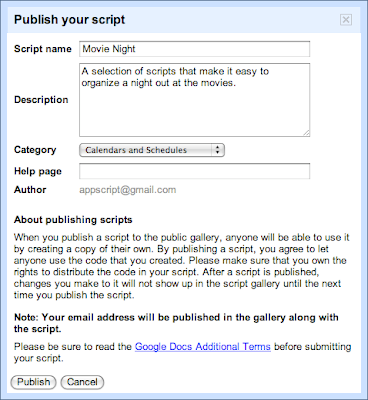
Check out the documentation and get started building your scripts - we look forward to seeing your gallery submissions. To share your masterpiece with the world, select Share -> Publish Script...from the script editor - its that easy!
Also, for those attending Google I/O this year, be sure check out the Google Apps Script talk on the Enterprise track.
Posted by Nikhil Singhal, Google Apps Script Engineer
Monday, March 9, 2015
Using Fusion Tables with Apps Script
Editor’s Note: This post written by Ferris Argyle. Ferris is a Sales Engineer with the Enterprise team at Google, and had written fewer than 200 lines of JavaScript before beginning this application. --Ryan Boyd
I started with Apps Script in the same way many of you probably did: writing extensions to spreadsheets. When it was made available in Sites, I wondered whether it could meet our needs for gathering roadmap input from our sales engineering and enterprise deployment teams.
Gathering Roadmap Data
At Google, teams like Enterprise Sales Engineering and Apps Deployment interact with customers and need to share product roadmap ideas to Product Managers. Product Managers use this input to iterate and make sound roadmap decisions. We needed to build a tool to support this requirement. Specifically, this application would be a tool used to gather roadmap input from enterprise sales engineering and deployment teams, providing a unified way of prioritizing customer requirements and supporting product management roadmap decisions. We also needed a way to share actual customer use cases from which these requirements originated.
The Solution
This required bringing together the capabilities of Google Forms, Spreadsheets and Moderator in a single application: form-based user input, dynamically generated structured lists, and ranking.

This sounds like a fairly typical online transaction processing (OLTP) application, and Apps Script provides rich and evolving UI services, including the ability to create grids, event handlers, and now a WYSIWYG GUI Builder; all we needed was a secure, scalable SQL database backend.
One of my geospatial colleagues had done some great work on a demo using a Fusion Tables backend, so I did a little digging and found this example of how to use the APIs in Apps Script (thank you, Fusion Tables Developer Relations).
Using the CRUD Wrappers
Full sample code for this app is available and includes a test harness, required global variables, additional CRUD wrappers, and authorization and Fusion REST calls. It has been published to the Script Gallery under the title "Using Fusion Tables with Apps Script."
The CRUD Wrappers:
/**
 * Read records
 * @param {string} tableId The Id of the Fusion Table in which the record will be created
 * @param {string} selectColumn The Fusion table columns which will returned by the read
 * @param {string} whereColumn The Fusion table column which will be searched to determine whether the record already exists
 * @param {string} whereValue The value to search for in the Fusion Table selectColumn; can be *
 * @return {string} An array containing the read records if no error; the bubbled return code from the Fusion query API if error
 */
function readRecords_(tableId, selectColumn, whereColumn, whereValue) {

  var query = ;
  var foundRecords = [];
  var returnVal = false;
  var tableList = [];
  var row = [];
  var columns = [];
  var rowObj = new Object();

  if (whereValue == *) {
    var query = SELECT +selectColumn+ FROM +tableId;
  } else {
    var query = SELECT +selectColumn+ FROM +tableId+
                 WHERE +whereColumn+ = +whereValue+;
  }

  var foundRecords = fusion_(get,query);

  if (typeof foundRecords == string && foundRecords.search(>> Error)>-1)
  {
    returnVal = foundRecords.search;
  } else if (foundRecords.length > 1 ) {
    //first row is header, so use this to define columns array
    row = foundRecords[0];
    columns = [];
    for (var k = 0; k < row.length; k++) {
      columns[k] = row[k];
    }

    for (var i = 1; i < foundRecords.length; i++) {
      row = foundRecords[i];
      if( row.length > 0 ) {
        //construct object with the row fields
        rowObj = {};
        for (var k = 0; k < row.length; k++) {
          rowObj[columns[k]] = row[k];
        }
        //start new array at zero to conform with javascript conventions
        tableList[i-1] = rowObj;
      }
    }
    returnVal = tableList;
  }

  return returnVal;
}
Now all I needed were CRUD-type (Create, Read, Update, Delete) Apps Script wrappers for the Fusion Tables APIs, and I’d be in business. I started with wrappers which were specific to my application, and then generalized them to make them more re-usable. I’ve provided examples above so you can get a sense of how simple they are to implement.
The result is a dynamically scalable base layer for OLTP applications with the added benefit of powerful web-based visualization, particularly for geospatial data, and without the traditional overhead of managing tablespaces.
I’m a Fusion tables beginner, so I can’t wait to see what you can build with Apps Script and Fusion Tables. You can get started here: Importing data into Fusion Tables, and Writing a Fusion Tables API Application.
Tips:
- Fusion Tables is protected by OAuth.This means that you need to authorize your script to access your tables. The authorization code uses “anonymous” keys and secrets: this does NOT mean that your tables are available anonymously.
- Some assumptions were made in the wrappers which you may wish to change to better match your use case:
- key values are unique in a table
- update automatically adds a record if it’s not already there, and automatically removes duplicates
- Characters such as apostrophes in the data fields will be interpreted as quotation marks and cause SQL errors: you’ll need to escape these to avoid issues.
 | Ferris Argyle Ferris is a Sales Engineer with the Enterprise team at Google. |